




YouTube TV has become one of the most popular streaming services in 2026, offering live channels, on-demand content, and cloud DVR, but many users also search for how to cancel YouTube TV when they no longer need the service.
However, sometimes you may want to cancel YouTube TV. Maybe you are switching platforms, trying to save money, or simply no longer need the service. This guide will show you how to cancel YouTube TV subscription in every possible way: on iPhone, Android, and computer, including pausing your membership or canceling a free trial.
By the end, you’ll understand every step and be confident in managing your YouTube TV membership.
What is YouTube TV?
YouTube TV is a streaming service offered by Google that allows users to watch live TV, record shows, and access on-demand content without cable.
Key Features:
- 100+ live TV channels
- Cloud DVR with unlimited storage
- Access on multiple devices (phone, tablet, smart TV)
- Personalized recommendations
- Family sharing with up to 6 accounts
Even though it’s convenient, YouTube TV membership canceling is sometimes necessary. People may find it expensive or prefer a different streaming service.
Why Do People Cancel YouTube TV?
There are several reasons why users might want to cancel YouTube TV:
- Cost Concerns – YouTube TV is priced around $72/month in 2026, which can be high for some users.
- Limited Channel Preferences – Some users only watch a few channels and feel they aren’t getting value.
- Switching Platforms – Competitors like Hulu + Live TV, Sling TV, and Netflix may offer better deals.
- Technical Issues – Streaming interruptions or app bugs can frustrate users.
- Temporary Break – Sometimes, people just need a pause during vacations or busy months.
Understanding your reason for cancellation helps decide if pausing YouTube TV is a better option than full cancellation.
How to Cancel YouTube TV Subscription
Let’s go step by step. YouTube TV allows cancellation on computer, iPhone, Android, and even during a free trial.
1. How to Cancel YouTube TV on Computer
- Open your preferred browser and visit the YouTube TV website.
- Click Login YouTube TV at the top-right corner. Enter your credentials.
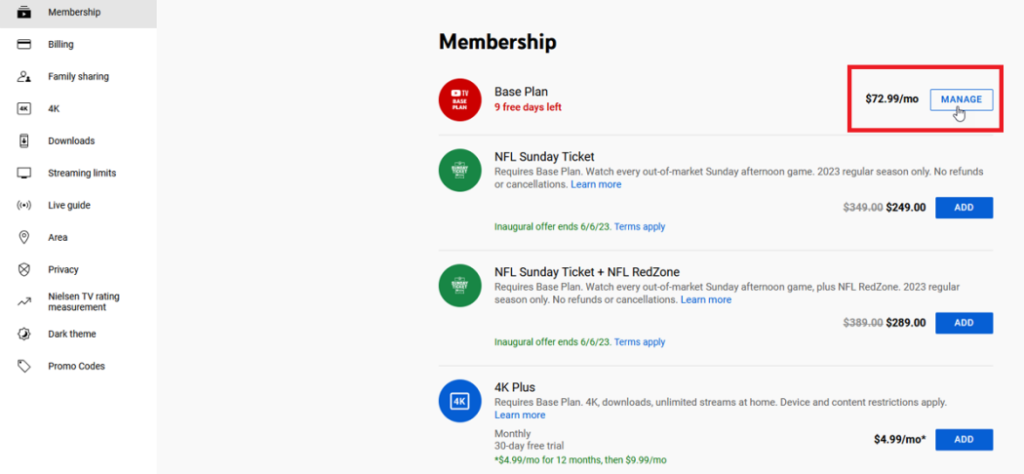
- Click your profile picture → Settings → Membership.
- Scroll to Pause or Cancel Membership.
- Click Cancel Membership and follow the prompts.
- Confirm your cancellation. You will receive an email confirmation.
Tips:
- Your membership will remain active until the end of the billing cycle.
- Make sure to log in with the account linked to the subscription.
- You can also pause YouTube TV instead of canceling if you are unsure.
2. How to Cancel YouTube TV on iPhone
- Open the YouTube TV app.
- Tap your profile picture → Settings → Membership.
- Select Cancel Membership.
- Confirm your cancellation.
Important: If your subscription is billed through Apple, cancel through iPhone Settings → Subscriptions → YouTube TV. Otherwise, cancellation via the app won’t work.
3. How to Cancel YouTube TV on Android Phone
- Open the YouTube TV app on your Android phone.
- Tap your profile picture → Settings → Membership.
- Click Cancel Membership.
- Confirm the cancellation.
For subscriptions billed through Google Play, you can also cancel in Google Play Store → Subscriptions → YouTube TV → Cancel.
4. How to Cancel YouTube TV Free Trial
Many users sign up for free trials but forget to cancel before billing starts.
Steps to cancel free trial:
- Go to the YouTube TV website or app.
- Log in to your account.
- Click Settings → Membership → Cancel Free Trial.
- Confirm your decision.
Free trials automatically convert into paid subscriptions if not canceled in time.
5. How to Pause YouTube TV
Instead of canceling, pausing is a smart option:
- Go to Settings → Membership → Pause Membership.
- Choose a pause duration (1, 2, or 3 months).
- Confirm the pause.
Benefits of pausing:
- Keep your DVR recordings.
- Avoid losing family sharing access.
- Resume membership automatically after the pause.
Managing YouTube TV Membership
Even after canceling, you can still manage your account effectively:
- Billing Information: Update or remove credit card info.
- Account Login: Log in anytime to check past subscriptions.
- Linked Services: Check YouTube TV subscriptions connected to Google account.
- Membership History: Review past payments and free trial periods.
Keeping track ensures no accidental charges occur after cancellation.
Common Mistakes While Canceling YouTube TV
- Cancelling via wrong platform: Free trial or Apple subscriptions need the correct path.
- Not confirming cancellation: Always wait for the confirmation email.
- Ignoring pause option: Many users cancel when pausing would suffice.
- Not logging into correct account: Using multiple Google accounts can cause confusion.
Avoiding these mistakes ensures smooth cancellation without unwanted charges.
Frequently Asked Questions (FAQs)
Q1: How do I cancel my YouTube TV subscription?
A: Log in, go to Settings → Membership → Cancel Membership, and confirm.
Q2: Can I cancel YouTube TV on my phone?
A: Yes. Use the YouTube TV app or your iPhone/Android subscription settings.
Q3: Will I get a refund after canceling?
A: No. Your membership stays active until the end of the billing cycle.
Q4: Can I cancel YouTube TV through Apple App Store?
A: Yes, go to Settings → Subscriptions → YouTube TV → Cancel.
Q5: What happens to my DVR recordings after canceling?
A: DVR recordings are deleted once your membership ends. Consider downloading important content before canceling.
Q6: Can I resume YouTube TV after cancellation?
A: Yes, log in and restart your subscription at any time.
Q7: How do I pause YouTube TV?
A: Go to Settings → Membership → Pause Membership and select the duration.
Q8: Can I cancel YouTube TV on the YouTube TV website?
A: Absolutely. Visit youtube.tv, log in, go to Settings → Membership → Cancel Membership.
Tips for Smooth YouTube TV Cancellation
- Always check the billing cycle date to avoid extra charges.
- Keep a screenshot of the cancellation confirmation email.
- Pause instead of canceling if you may return soon.
- Verify which account is active if you have multiple Google accounts.
- Update billing info if you plan to return to YouTube TV later.
Warnings
- Canceling YouTube TV free trial late will automatically start a paid subscription.
- DVR recordings will be deleted after cancellation.
- Family sharing accounts linked to your membership will lose access.
Conclusion
Canceling YouTube TV doesn’t have to be confusing. Whether on a computer, iPhone, or Android phone, or even during a free trial, following the right steps ensures you save money and control your streaming services.
Remember, pausing YouTube TV is an excellent alternative if you’re not sure about full cancellation. By understanding all options and managing your membership properly, you can make the most out of YouTube TV without overspending.
Now, you can cancel, pause, or manage your YouTube TV membership confidently and efficiently.